Master Voice Typer in 3 Minutes
Watch the complete walkthrough below. Learn the global shortcut, switch between Hold and Hands-Free Tap modes, and master spoken macros.
Dictation Speech Language vs. App Menu Language
The single most common confusion: Voice Typer has two separate language selectors that do entirely different things.
The Common Trap: Changing UI Language Expecting Dictation to Change
Changing the dropdown in Settings ➔ General only changes the language of the application's menu buttons (e.g. converting "Settings" into Spanish/Hindi). It does not change the neural speech recognition model!
Languages & Hotkeys ➔ Speech Language
Controls the acoustic Whisper / Chirp neural engine. Set this to whatever language you actually speak into your microphone.
Settings ➔ General ➔ App Language
Only affects the graphical text printed on the desktop software itself (sidebar labels, tabs, preferences).
Hold-to-Talk vs. Hands-Free Tap Mode
Switch trigger modes anytime under Languages & Hotkeys depending on what you're writing.
Hold-to-Talk
Press and keep holding Ctrl + Space while speaking. Release the moment you finish your thought.
Tap (Toggle On / Off)
Tap once to start dictating hands-free. The floating HUD stays active while you pace or talk. Tap once again when done to insert text.
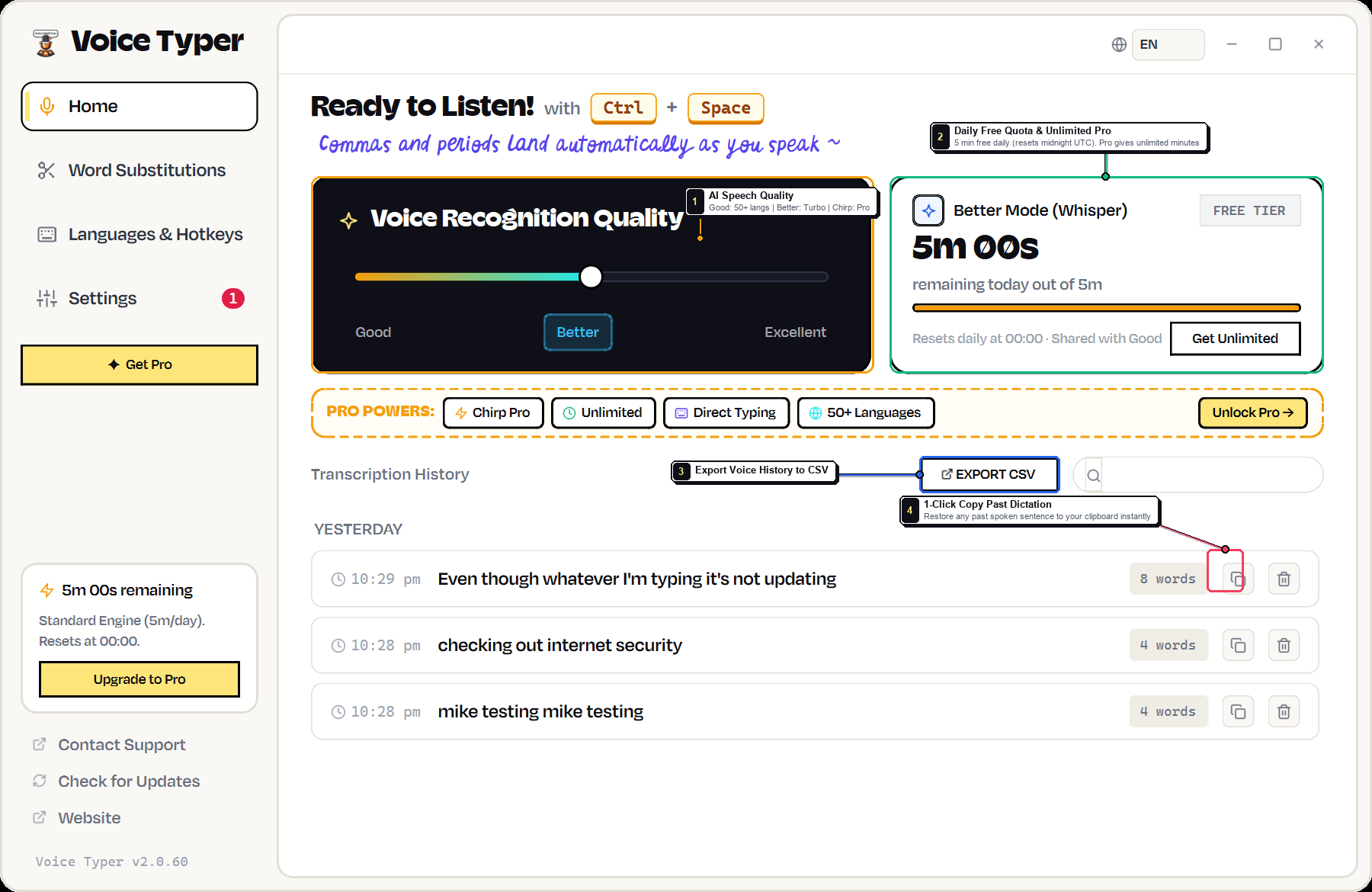
The Quality Slider: Good vs. Better vs. Excellent
On your Dictation Cockpit screen, adjust the quality slider to match your speed and acoustic environment.
Good Engine
Ultra-low latency, blazing-fast multi-lingual model covering 50+ languages. Great for quick chat messages on mobile hotspots or slower connections.
Better Engine
OpenAI Whisper v3 Large Turbo. Flawless contextual recognition of technical terms, programming syntax, medical jargon, and automatic punctuation.
Excellent Tier
Enterprise multi-acoustic model with supreme noise rejection. Perfect for high-reverb rooms, open cafes, background music, and heavy accents.
Three Hidden Features Most Users Miss
Built specifically for programmers, writers, and power users who demand zero friction.
Direct Unicode Injection
Zero Clipboard Overwrite: Older tools copy text to your clipboard and hit Ctrl+V, destroying whatever password or code snippet you had copied. Voice Typer types directly into active carats without touching your clipboard!
Spoken Voice Macros
Under Word Substitutions, assign spoken triggers. Simply say "my email" or "zoom link", and Voice Typer auto-expands your full address or meeting template instantly.
Multi-Monitor HUD Pill
Working on dual or triple displays? Head to Settings ➔ System ➔ Move Overlay. Drag and anchor the floating soundwave HUD pill to any corner of any screen.
Interactive Desktop UI Explorer
Click any tab below to inspect the callouts for each screen. Click the screenshot to enlarge.
Frequently Asked Questions
Quick answers to common questions, permissions, and audio devices.